Tuning GitHub Notifications with Slack (PRs and Workflows)
I found myself trying to find the best way to know about which PRs in GitHub I needed to look at and which workflows I needed to monitor. Specifically this became more important with the usage of GitHub Copilot AI Coding Agent which increased the amount of PRs I would need to monitor as I created and assigned issues to it.
So let me share with you what I did to tune my GitHub notifications and how you can do the same.
Note: This guide deals with notifications on PRs and workflow runs that you are responsible for. It does not cover notifications for issues, discussions, or other GitHub activities due to limitations of the GitHub Slack App on tuning those to more granular levels.
It is recommended to setup a separate slack channel for issues and discussions for specific repositories or teams. Even though the channel will recieve all notifications for those issues and discussions, you will still be notified by slack specifically when you are mentioned in those issues or discussions.
🎯 The Goal
Our ideal notification system should:
- Provide visibility into PRs and workfows that we own or require our input
- Help us stay accountable for code we merge or commit.
- Reduce noise from irrelevant notifications.
🛠 Tools We'll Use
We’ll accomplish our streamlined notification setup using:
- GitHub for Slack App – for workflow run visibility and real-time alerting. Install it here
- GitHub Scheduled Reminders – for PR review and mention tracking in Slack.
✅ Step 1: Install the GitHub Slack App and Sign In
First, install the GitHub Slack App into your workspace:
👉 https://github.com/integrations/slack?tab=readme-ov-file#installation
Once installed, sign in using the following Slack command:
1/github signin
This will link your GitHub identity with Slack and enable personalized notifications.
Note: For Aptive, the GitHub Slack App is already installed in the workspace so you will just need to add the GitHub app to your Slack.
Reference: Add Slack Apps to Workspace
✅ Step 2: Subscribe to Workflows You Trigger on main
Note: In Aspyn we use the
mainbranch as our primary development branch. If your team uses a different branch, adjust accordingly.
We want visibility into GitHub Actions workflows that we initiate. This includes:
- Merges we click.
- Code we commit directly to
main.
These workflows are our responsibility and must be monitored.
To do this, run this command in any Slack channel or DM:
/github subscribe aspyn-io workflows:{branch:"main" actor:"
Replace <your-github-username> with your GitHub handle.
💡 Note: We keep this scoped to the all repositories in aspyn-io organization as you will only receive notifications for workflows you trigger on the
mainbranch of a repository. But if needed you can scope it down to a specific repository by adding the repository name:1/github subscribe aspyn-io/<repository-name> workflows:{branch:"main" actor:"<your-github-username>"}
💡 Note: This won’t notify you about other people’s code—it’s scoped to code you touched on the
mainbranch.
Remember that a core tenant of continuous integration is that main must be deployable at all times. If you merge it, you own it. PR reviewers approve, but authors merge and are accountable for build stability with the code they commit. This setup ensures you’re notified about the workflows you trigger, keeping you accountable for your contributions.
✅ Step 3: Set Up GitHub Reminders for Pull Requests
The GitHub Scheduled Reminders feature is poorly named—it does much more than scheduled check-ins. It provides real-time Slack alerts for activity on PRs you’re involved in.
To configure it:
- In your GitHub settings click on "Scheduled Reminders".
- Add the Aspyn IO organization (if it has not been added yet) by clicking "Add organization" and selecting "aspyn-io". If it has already been added then simply edit the scheduled reminders for the organization.
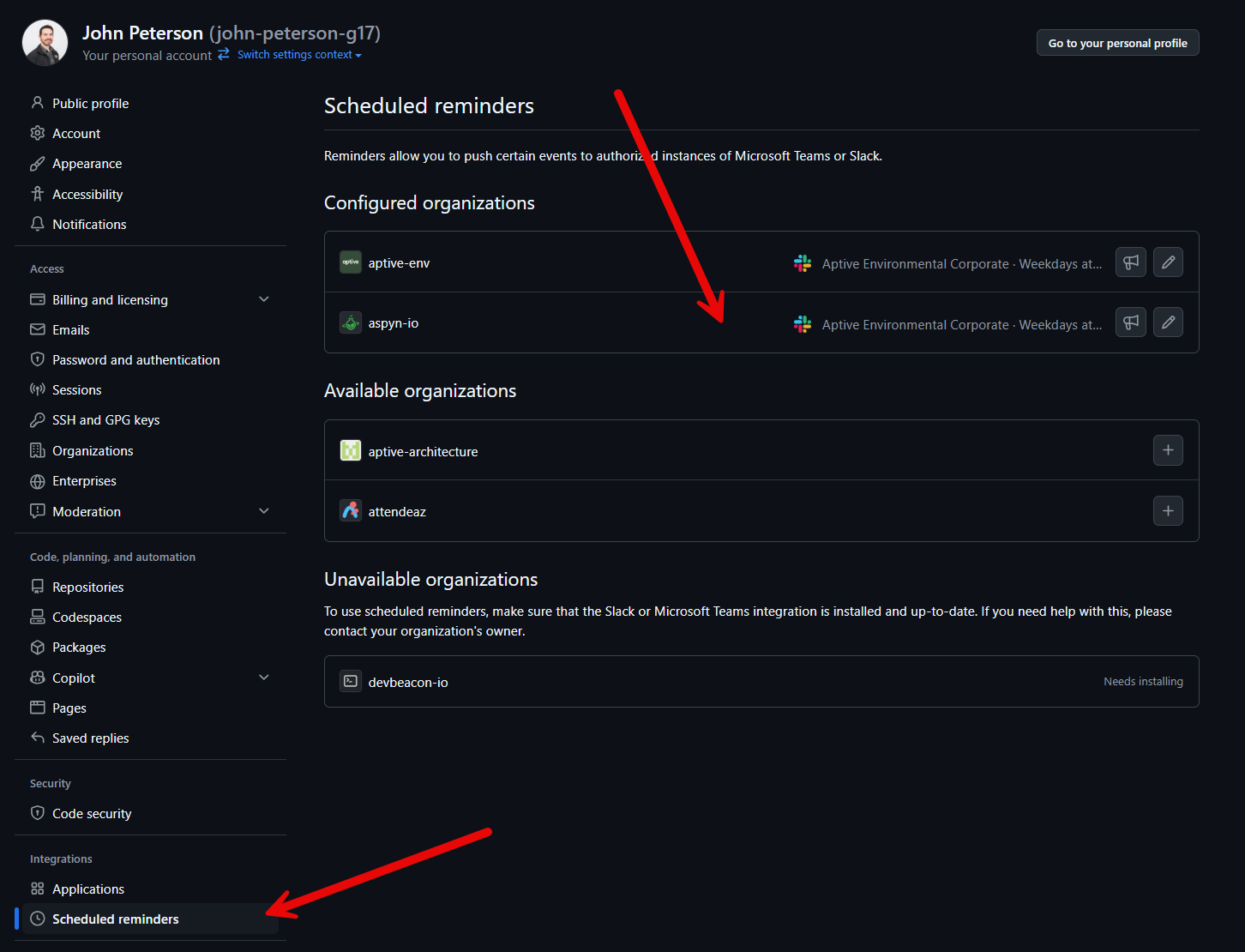
- Link your Slack identity if you haven’t already.
- Select your desired Slack workspace and check the real time alerts that you want to recieve.
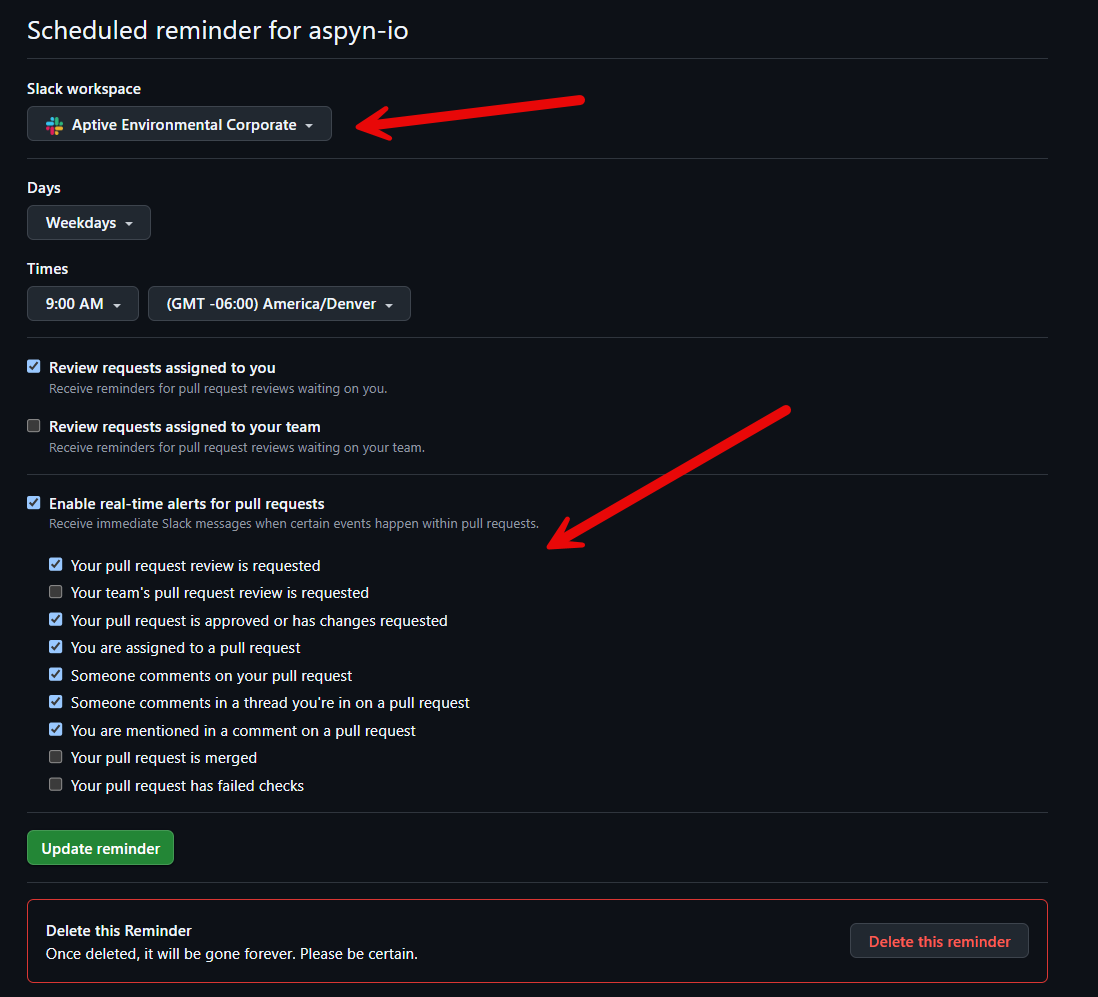
Now enable at least the following notifications:
🔔 Must-Have Notifications
- ✅ Your pull request review is requested
- ✅ Your pull request is approved or has changes requested
- ✅ Someone comments on your pull request
- ✅ Someone comments in a thread you're in on a pull request
- ✅ You are mentioned in a comment on a pull request
These ensure you’re looped in only when something requires your input.
⚪ Optional Team-Based Notifications
If you’re working in a github team and want notifications for team activities, consider these:
- 🔄 Your team’s pull request review is requested
These can be useful for oversight, but only enable what you’ll actually look at.
⚪ Optional Your PR Status Changes
These can also be useful if you want to be pinged for status changes on your own PRs, but they can be redundant if you’re already monitoring your own PRs closely:
- ✅ Your pull request is merged
- ❌ Your pull request has failed checks
🧠 Final Thoughts
It’s easy to let your GitHub notifications become a dumping ground. But if you ignore everything, you’ll miss the stuff that matters. The right setup isn’t just about turning things on—it’s about turning off the noise. If you're marking everything as read, your system is broken. Tune your notifications until every ping is worth your time.
Note: Remember that this is just a starting point. You should continually tune your notifications as needed to ensure they remain relevant and useful.
This new era—where AI writes some of your team’s code—means your focus and oversight are more valuable than ever. Set up your GitHub and Slack to work for you, not against you.